All projects

Case study

AI security scanner - From a raw AI agent to a security product people trust, refined by user feedback.

Sticklight is Elementor’s AI-powered site builder for professionals who build websites for clients. For them, a secure project is what makes handoff possible with confidence.

My role was to turn an engineering MVP into a flow professionals could actually trust and follow, taking it from a developer prototype to a shipped Sticklight feature.

Company
Sticklight by Elementor
Timeline
Q2 2026 · 2.5 weeks
Team
1 PM, 1 Design, 3 Dev
Tools
Figma, Sticklight, Cursor, Claude
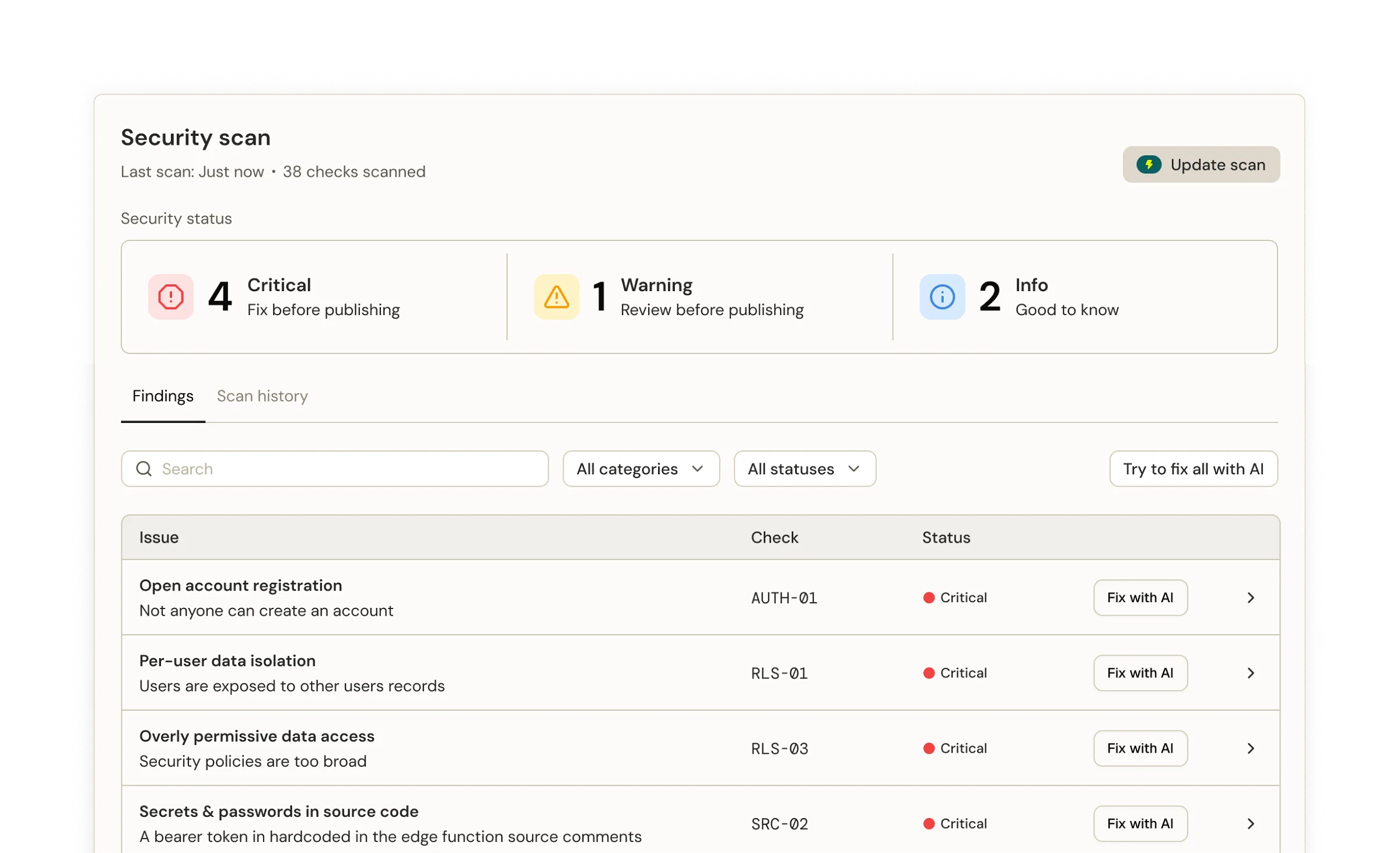
Sticklight's security scan screen showing four critical and one warning finding in a findings table, next to an issue detail drawer, a scan history tab and a Fix with AI chat response.

Starting point

Starting point: agent first

The scanner began as a functional, feature-flagged MVP inside the product - open only to the team. It worked, but wasn’t designed. This couldn’t be a waterfall: the agent’s logic had to exist before design could even ask the right questions.

It also lived in our repo, which meant I could use Cursor to ask directly how things were built.

Prototyping

Prototyping with our own tool

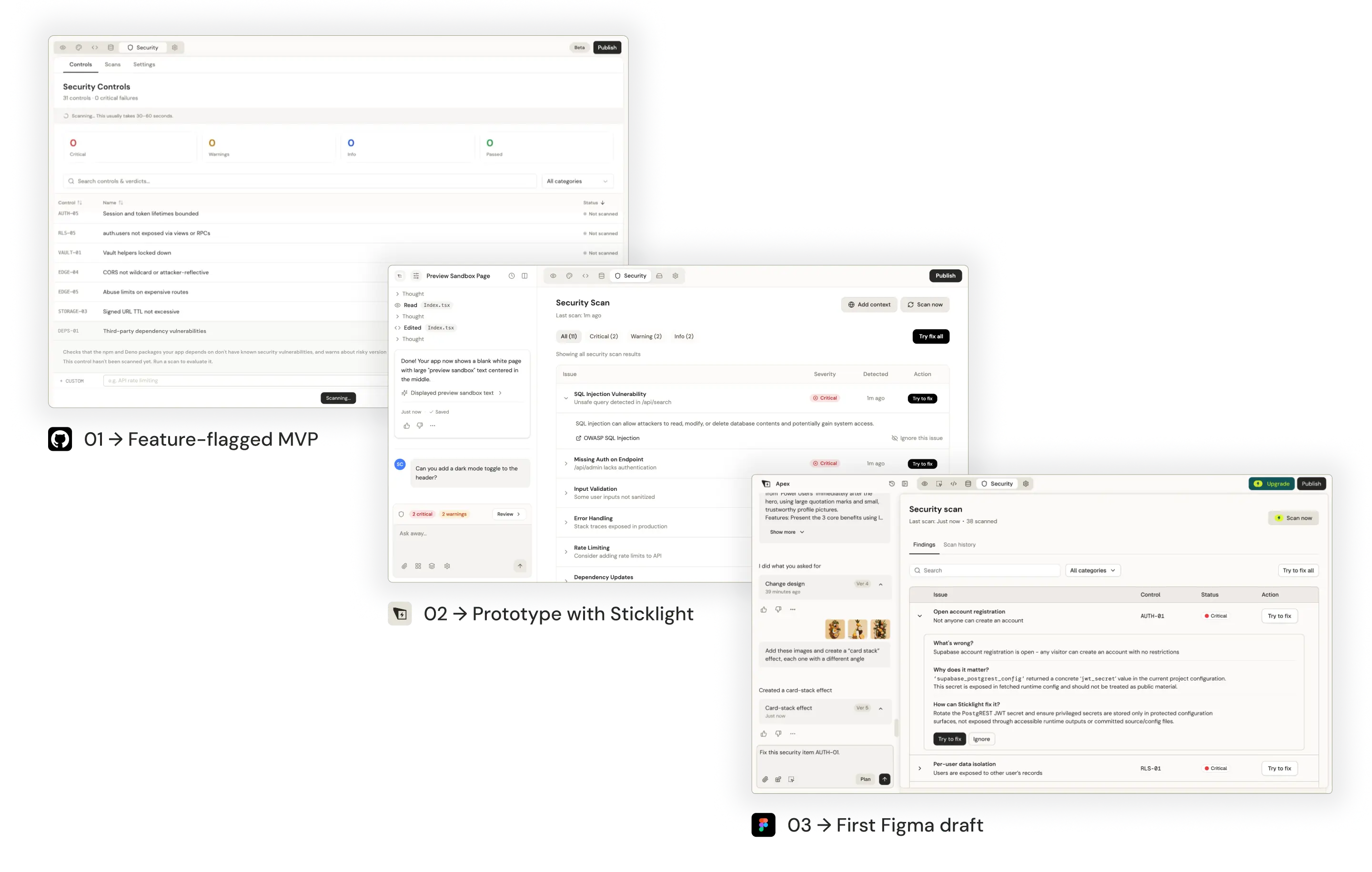
Sticklight was mature enough at this point to prototype with, so I vibe-coded the interface using our own tool before opening Figma. I could lay out options, flag features I thought were worth cutting for this version, and involve the PM and dev team in fast loops before investing real design time.

I moved into Figma after agreeing on the prototype scope and structure.

Three stages overlapping, left to right: 01, the feature-flagged MVP’s dense Security Controls table; 02, the prototype built in Sticklight, with severity filters and Try fix all; 03, the first Figma draft, with Findings and Scan history tabs and an issue expanded to explain what’s wrong and how to fix it.
Process: agent first, then design

Design

Final design - from scan results to cross-product visibility

A few surfaces had to work as one system: a findings table for scanning results, a history tab for tracking change over time, per-issue drawers for detail, and cross-product alerts for visibility outside the security context.

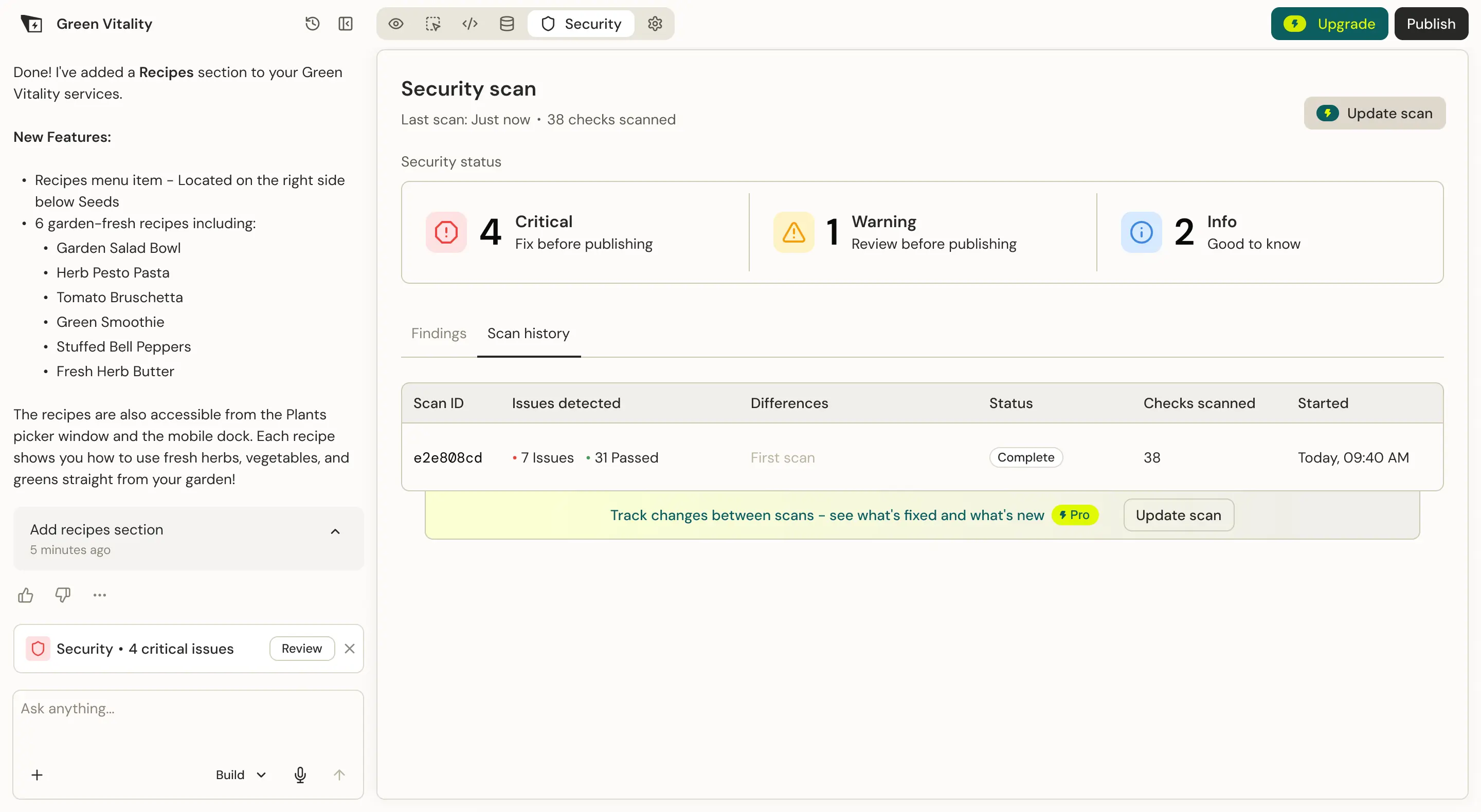
The first scan is free - a full, real result of the actual project, so free users see exactly what the product finds before deciding whether it’s worth paying for. Rerunning that scan or comparing results over time is where Pro starts.

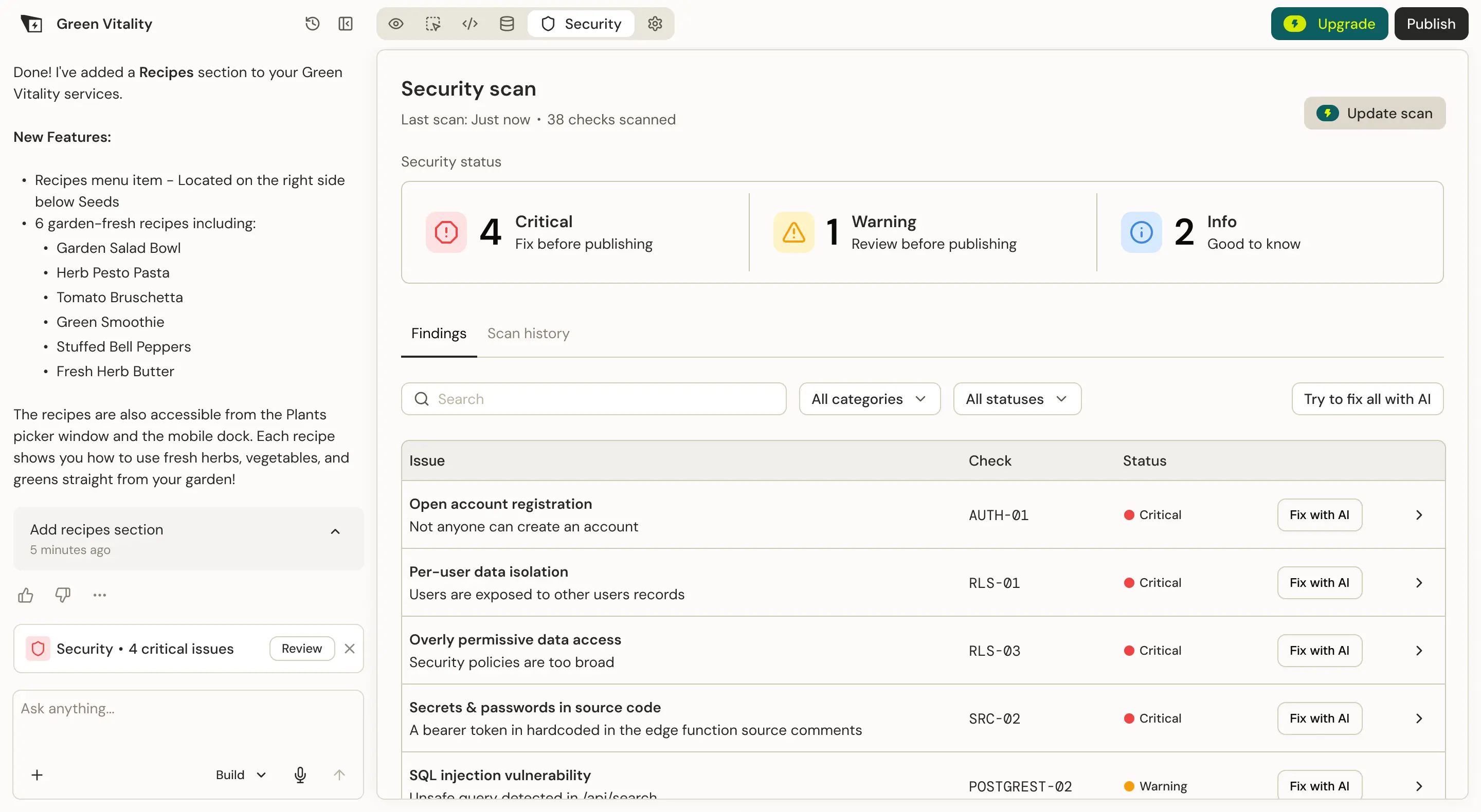
The security scan panel beside the AI chat: the Findings tab listing each issue with its check, severity and a Fix with AI action.
Findings: First scan is free, additional scans require Pro
The same panel on the Scan history tab, listing each scan with issues detected, differences, status and checks scanned.
Scan history: Free users can see their first scan only
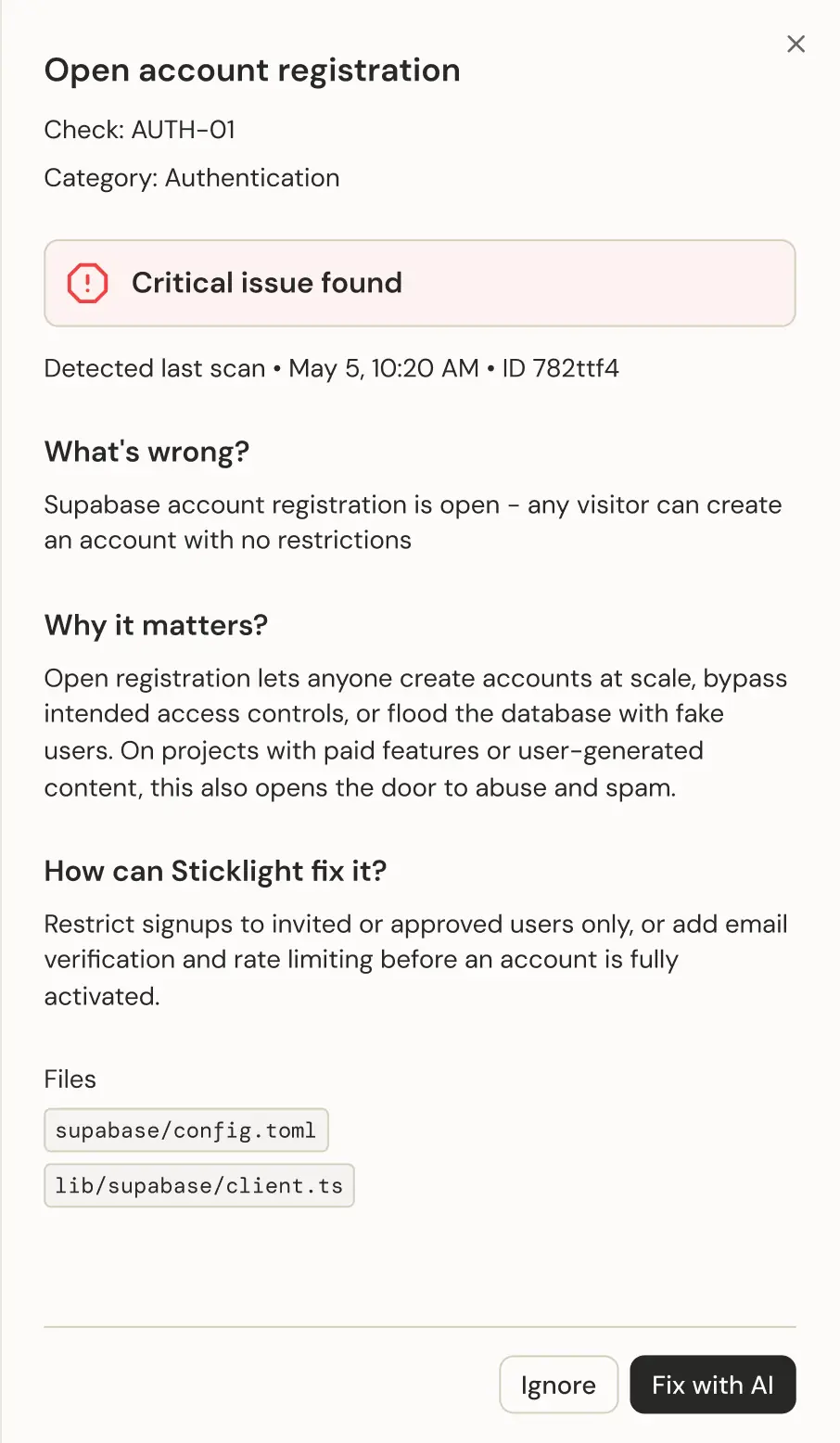
Issue drawer for a critical finding, Open account registration: what’s wrong, why it matters, how Sticklight can fix it, the files involved, and Ignore and Fix with AI actions.
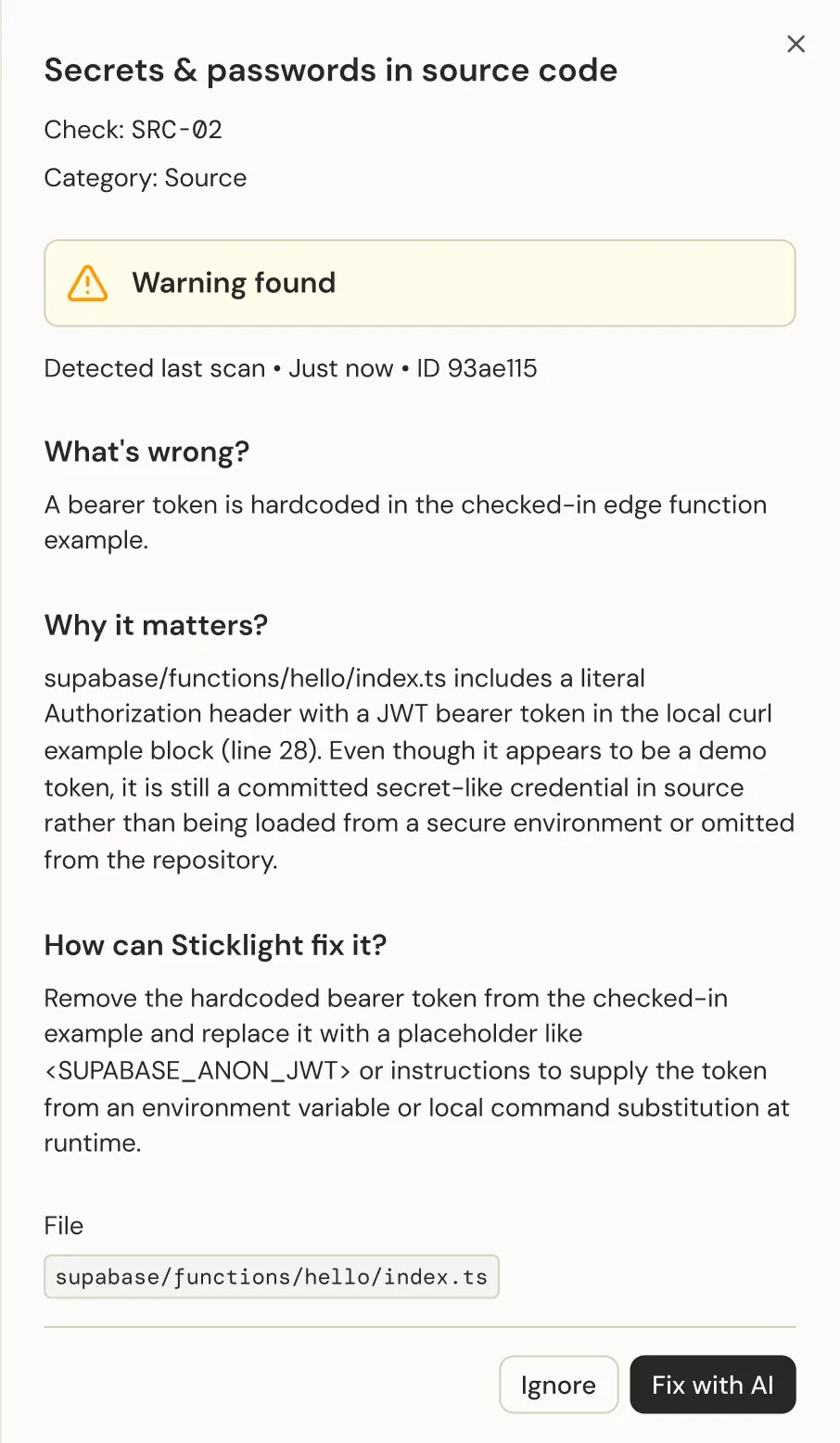
Issue drawer for a warning, Secrets & passwords in source code: a bearer token hardcoded in an edge function, the suggested fix, the file, and the same two actions.
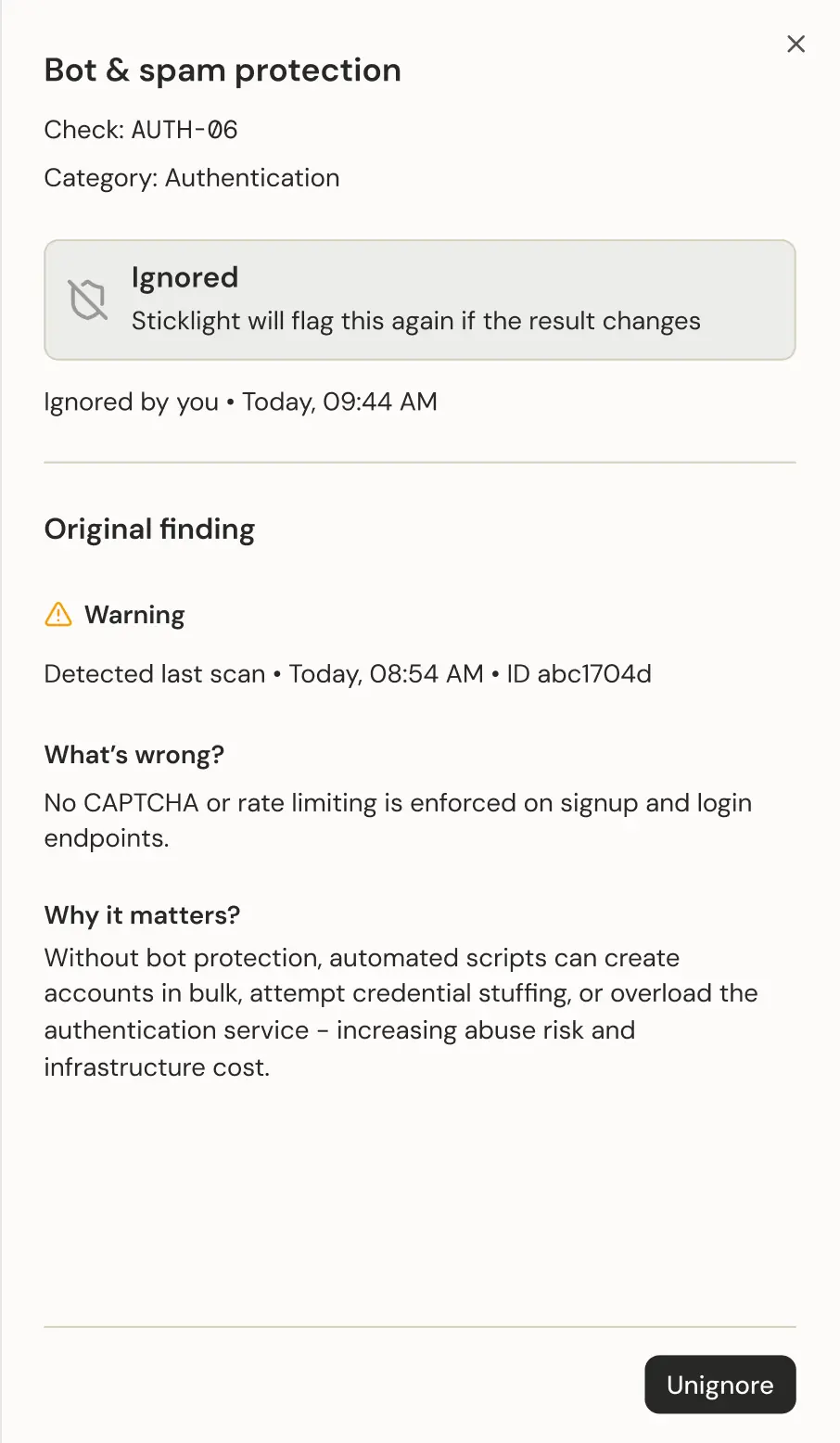
Issue drawer for an ignored finding, Bot & spam protection: marked Ignored by you, with the original warning below it and an Unignore action.
Side drawers open from the table, shown in three states
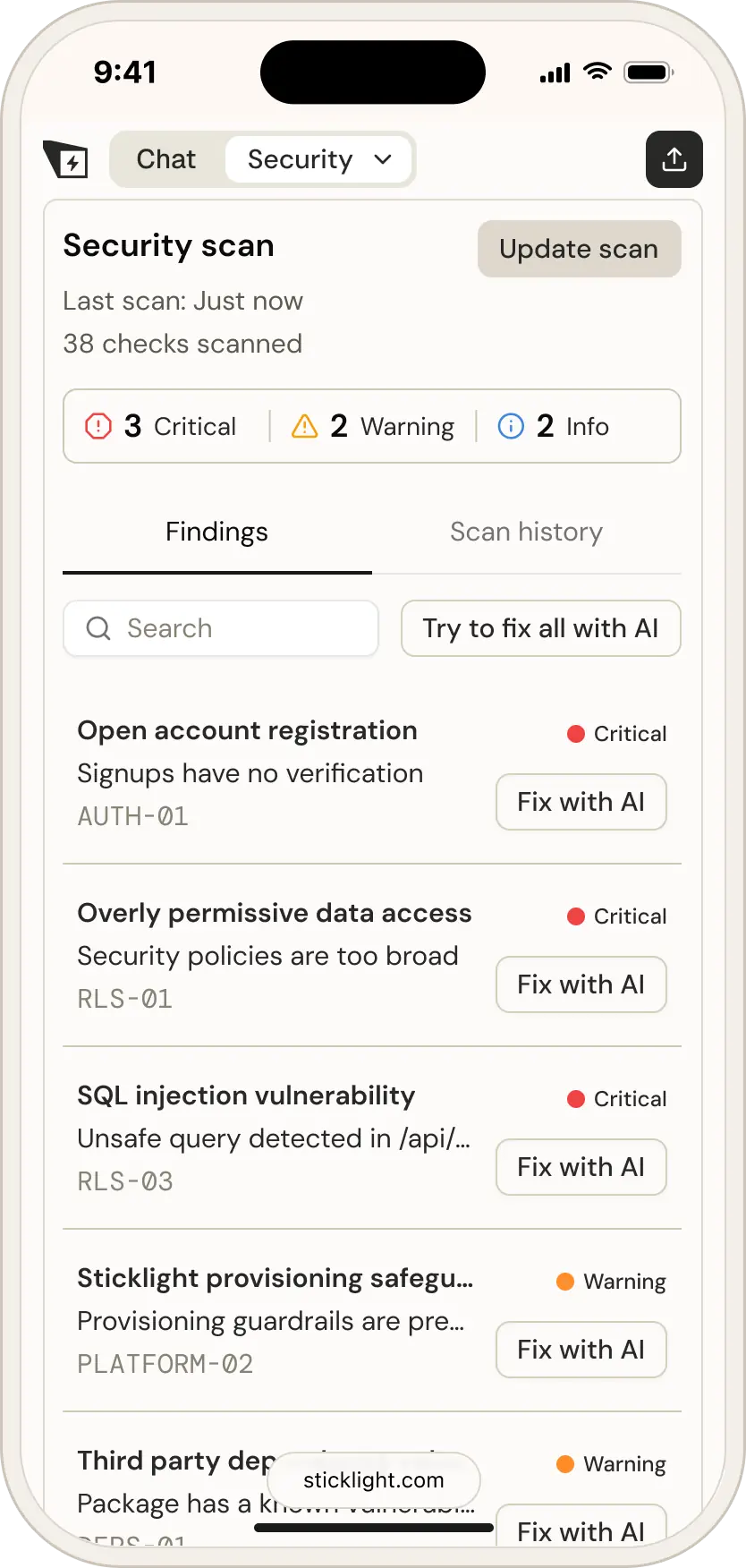
The security scan on a phone: severity totals, Findings and Scan history tabs, search, and a list of issues, each with its severity and a Fix with AI button.
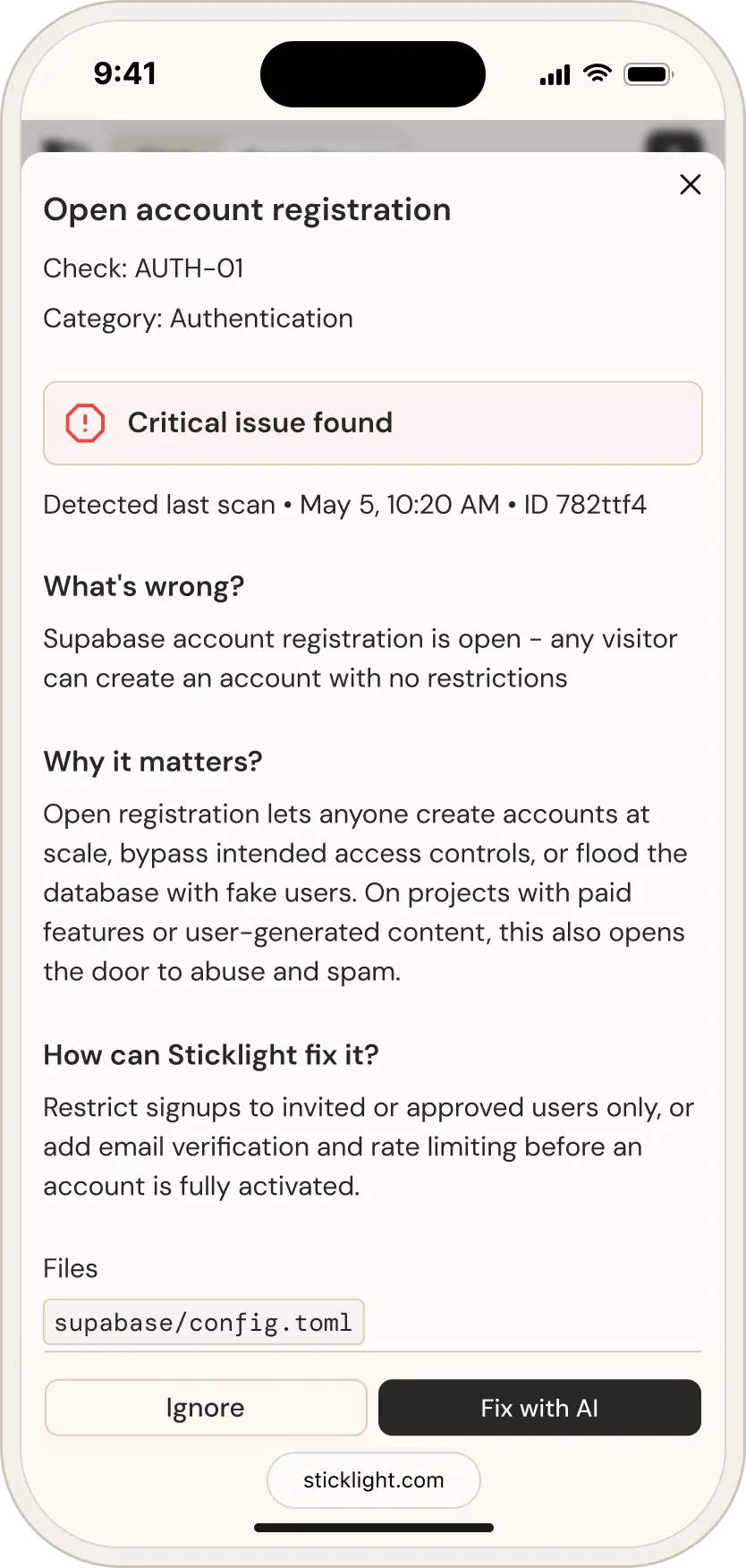
One issue open as a sheet over the scan: a severity banner, what’s wrong, why it matters, how Sticklight can fix it, the files involved, and Ignore and Fix with AI actions.
Findings table on mobile, opening to a full-screen detail on tap
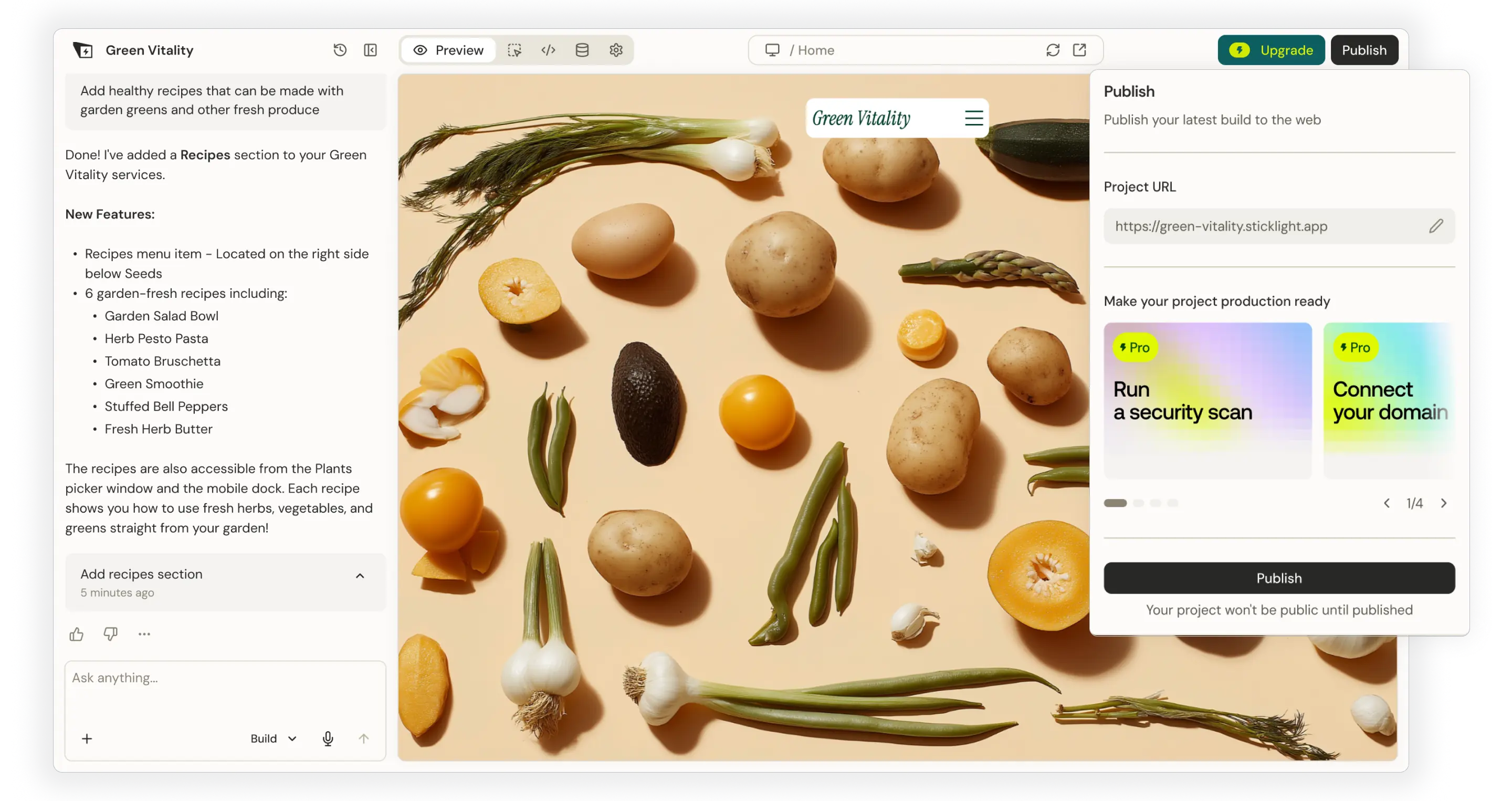
The Publish panel before a scan, offering Run a security scan as a Pro card beside Connect your domain.
Before you publish, we suggest running the first security scan
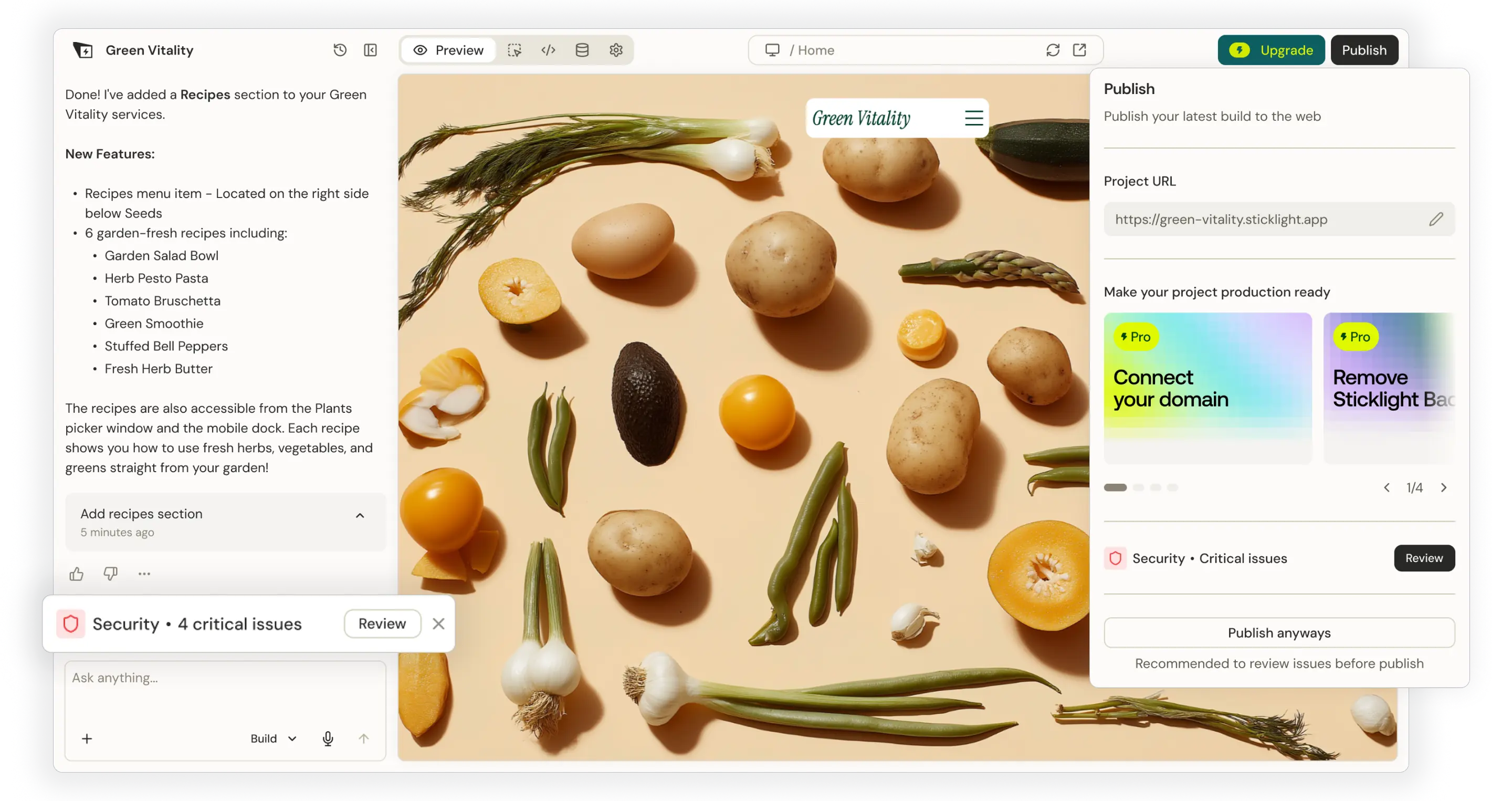
The same panel after a scan found four critical issues: a Security alert in the chat and a Publish anyways warning in the panel.
After detecting critical issues, alerts appear across chat and publish

Beta user feedback

Detecting vulnerabilities was solved - fixing them with AI was the next design problem

The scanning process runs on the security agent, but that’s invisible to the user - it doesn’t need to be a moment in the UI.

Fixing security issues is another thing, and getting it right took three tries, shaped in part by feedback from Sticklight’s community experts group.

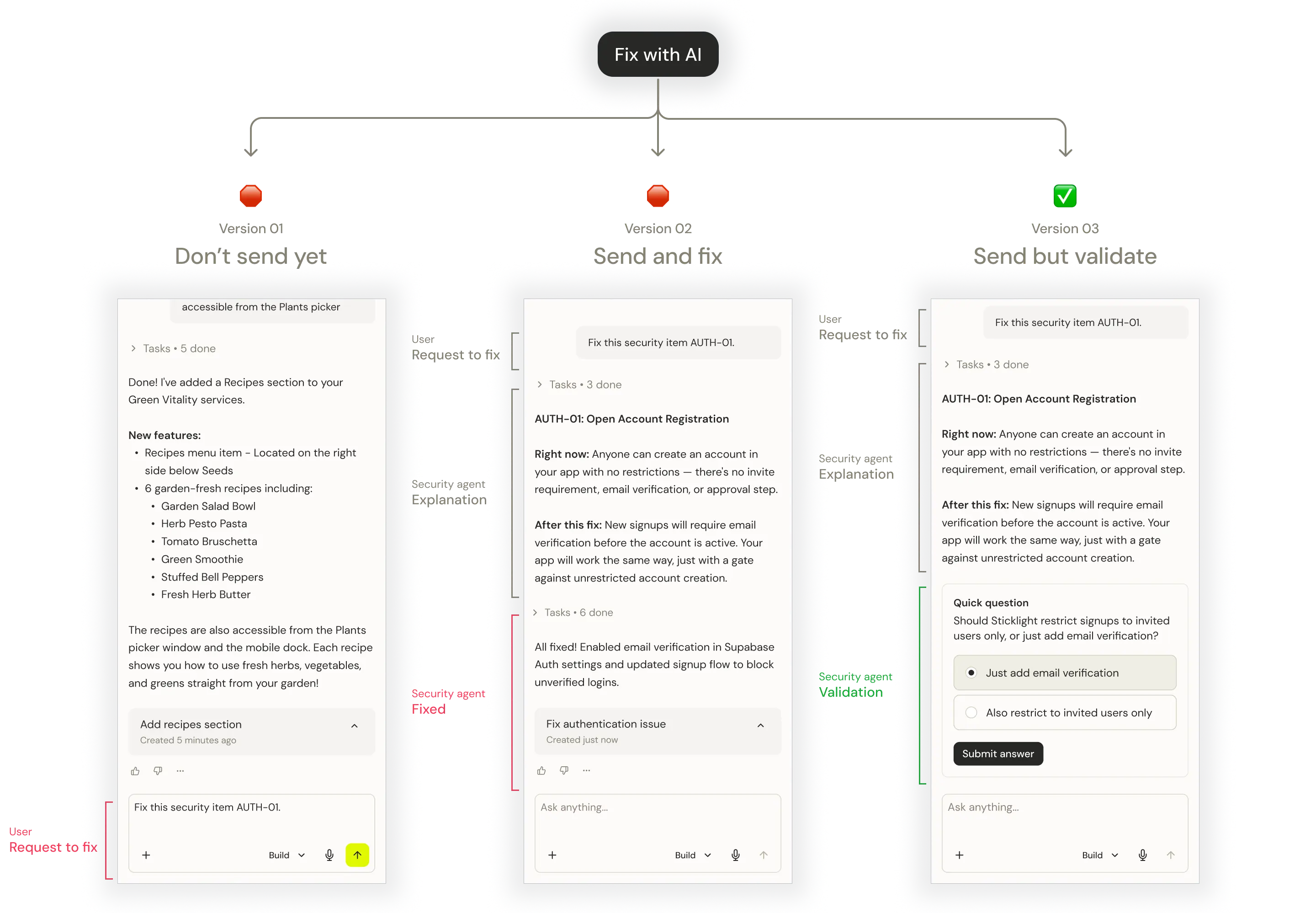
Version 01

Don’t send just yet

Clicking “Fix with AI” filled the chat’s prompt box, waiting for the user to actively send the request. It was mostly missed. One tester even said:

“I clicked it a few times before I noticed it turned into a prompt - should just run, no reason for an extra step.”

Version 02

Send and fix

The click sent the prompt automatically, fixing the issue right away. Fast, but it removed the moment to catch or question a change before it happened - a bad fit for a feature built on trust.

Final · Version 03

Send but validate

Click sends the prompt automatically, but the agent pauses to inform and validate before applying. Immediate enough for users who just want it handled, transparent enough for those who want to see the change first.

The three Fix with AI chat versions compared: the prompt left unsent, the prompt sent and fixed immediately, and the final version where the agent explains the fix and asks a validating question first.
Getting “Fix with AI” right took three tries, each testing a different level of trust

Takeaway

What I learned

Working in parallel with development

Some AI-based features can’t really be designed before having a working MVP - the real decisions only show up once there’s something to use. In these cases, working in parallel with development isn’t a compromise, it’s a must.

ICP feedback wins

Opening a feature to even a small group of real users beats generic research - this feedback came from an actual user matching the product’s exact ICP, and it’s what reshaped the fix flow.

Control builds trust

Trust in security isn’t just about what AI can do - it’s about whether the user still feels in control while it’s doing it.